
Quick answer: in the Catálogo (Catalog), add products to Meu orçamento (My quote), choose color and quantity, fill in who it's for and send it. Our team replies with the sales proposal and the price of each item.
Before you start
- The minimum quantity is 30 units per product. Some products require more, and the proposal confirms the minimum for each one.
- If you want, have your brand logo at hand. It can go along with the quote.
Build and send the quote
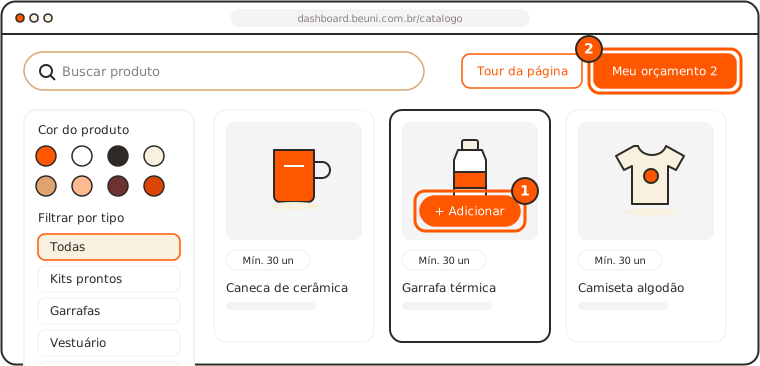
- In the Catálogo, hover over the product card and click Adicionar (Add). To see photos and variants first, click the card.
- Click Meu orçamento, at the top right. Adjust the color and quantity of each product.
- If you want, add your brand logo to each product.
- Click Solicitar orçamento (Request quote) and choose Enviar para um endereço (Send to one address) or Enviar para vários endereços (Send to several addresses).
- Fill in Para quem? (Who is it for?), the deadline (optional), the delivery and Observações (Notes). Fields with an asterisk are required.
- Click Enviar pedido (Send request).
Done: the order number appears, and the proposal is in Pedidos > Propostas em aberto (Orders > Open proposals).
Tip: want to compare 50 and 300 units, or one kit for employees and another for clients? See how to quote more than one option in the same quote.
Talk to the team after sending
On the Orçamento enviado! (Quote sent!) screen, click Falar com o time sobre esse pedido (Talk to the team about this order). WhatsApp opens with the message ready (order number, items, quantities, deadline and company) for the team that looks after your account. If you'd rather not reach out, the team replies within 1 business day.
Next steps
- When the proposal arrives, approve the mockups and confirm the order.
- Questions about prices and lead times? See the quotes and pricing FAQ.